
Visual explanations make things simpler
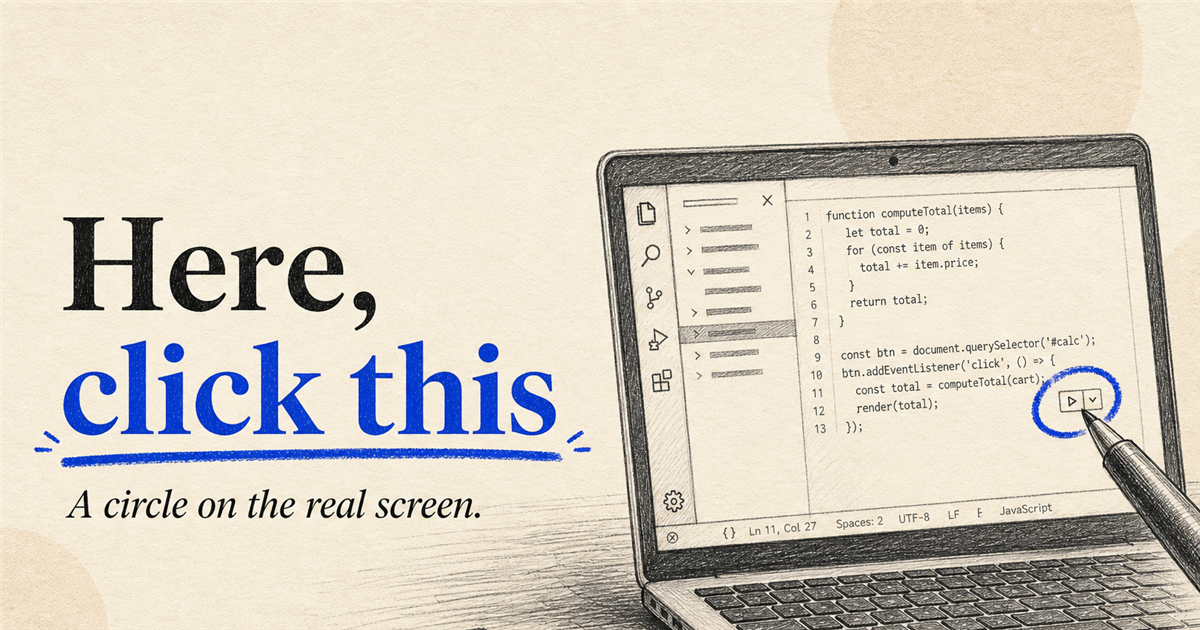
Carlos needed Git and PowerShell to upgrade a home data pipeline John helped build. On the call John drew on Carlos's screen — "here, click on this" instead of describing a hidden VS Code icon that no-one could see.
Carlos runs some complex software on his home computer — that John (me) helped to build. When this stuff needs an upgrade — it’s meticulous work, involves Git and PowerShell and updates have to be done in the right order.
We used Expressed to make the process significantly easier.
The situation
The software in question is a gigantic bunch of PowerShell to glue a data pipeline together.
It’s not a commercial product — so upgrades are, how shall we say this in industry speak, let’s just call it a work in progress. Upgrades require a careful hand (if you want to keep said appendage). It’s not rocket science, but if you don’t know software development — it’s a big ask to get it right — even if there are some bootstrapping/upgrade scripts involved.
Fair enough - screen sharing to the rescue right? How hard can this be? (famous last words, anyone?)
The problem
Have you ever tried to describe how to click on the “update git repo” button in Visual Studio Code, when it isn’t visible and the source control window isn’t even open? It goes something like this:
- Click on the Git / source control window
- No, the little icons on the left - looks like a .. well.. a…fork?
- Ok, great - now hover your mouse over the… NO! not there, left, left, LEEEEEFT, right… no. why. what are you…
- Right now among those 4 icons that just appeared out of nowhere… oh wait, move the mouse down a bit… up. up… YES! among those 4 icons, see the one that looks like a circular arrow?
- Click it
I’ll skip the rest — you get the point. And this isn’t an isolated case in my experience. Nobody is an idiot anywhere in this — it’s a simple matter of information that cannot be easily transmitted via voice alone.
The solution
Carlos used Expressed - not so he could draw, but rather - that I could use the drawing tool to help guide him while I was on the call with him.
So while we stayed on the call, I was able to see his screen on my tablet. When I drew anything it appeared on his screen - so I just underlined, circled, talked and wrote until it was clear what he had to do.
A good example: “here, click on this” - as I drew a circle - is instantly more understandable because it has visual cues.
Conclusion
Expressed is free to use - help yourself, help others - make their video call a better one today! Download it and give it a shot - I think you’ll like it.
If you’ve got a session like that coming up, write me — I’ll set you up personally.